
Installation and Setup
- Install Mod Organizer 2 from Github
- Scroll down until you see a list of files.
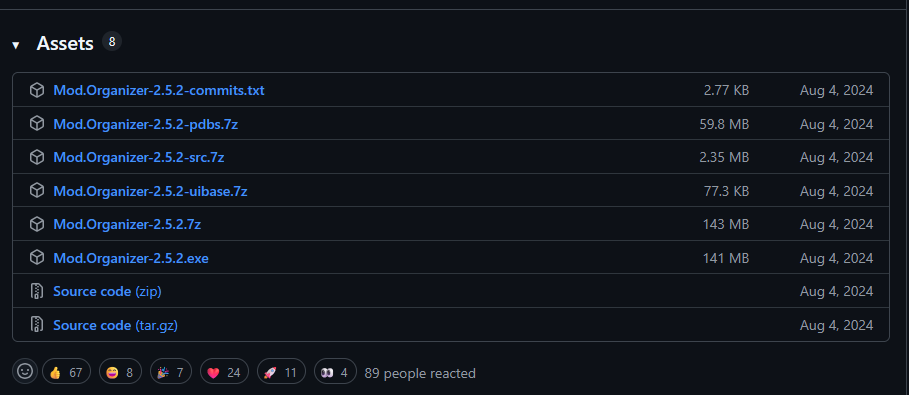
- Chose the exe file and install it.
- Where you install it does not matter.
- Install the Modworkshop Plugins for MO2
- You find those here
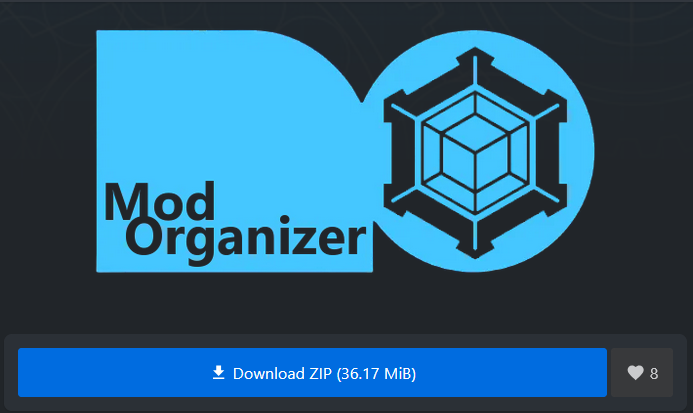
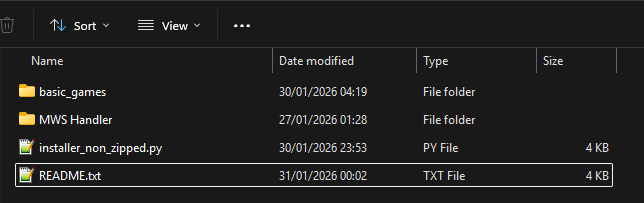
- Once downloaded unzip the files
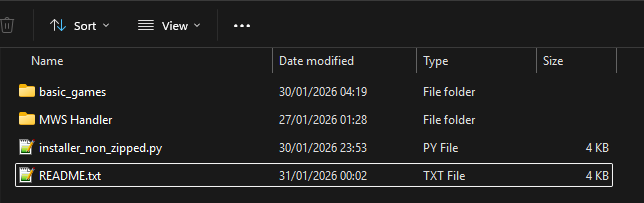
- Find the folder where you installed MO2
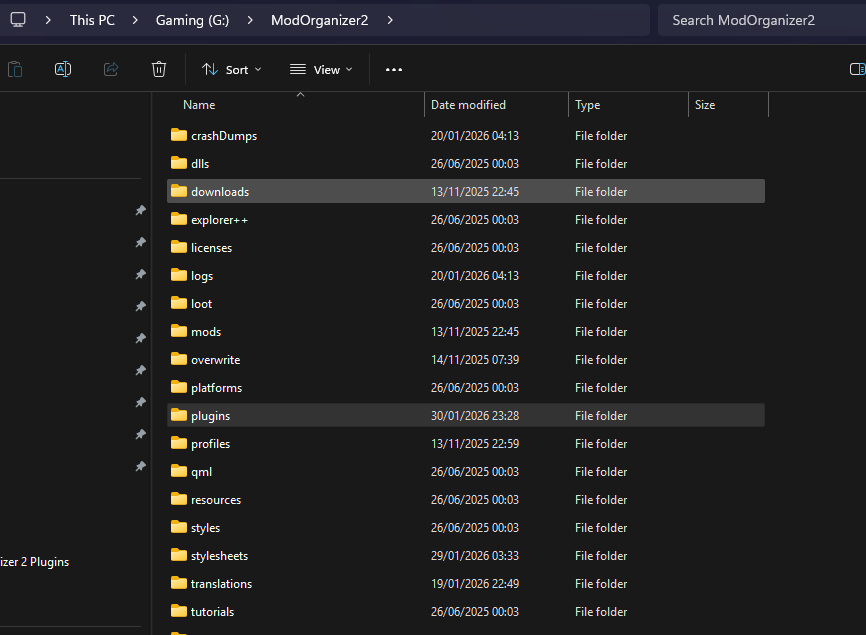
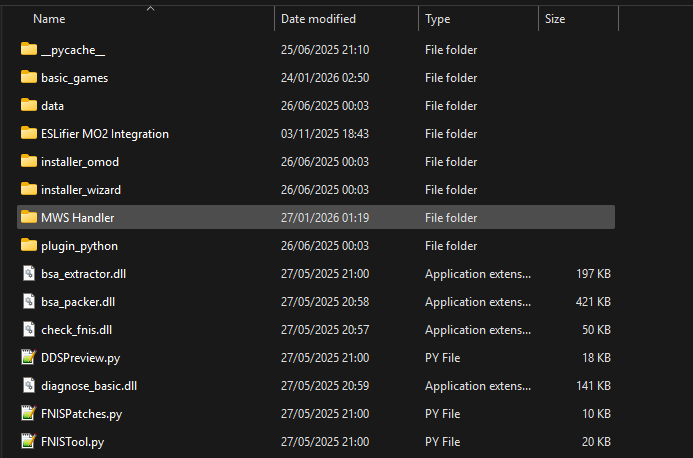
- Go to the plugins folder
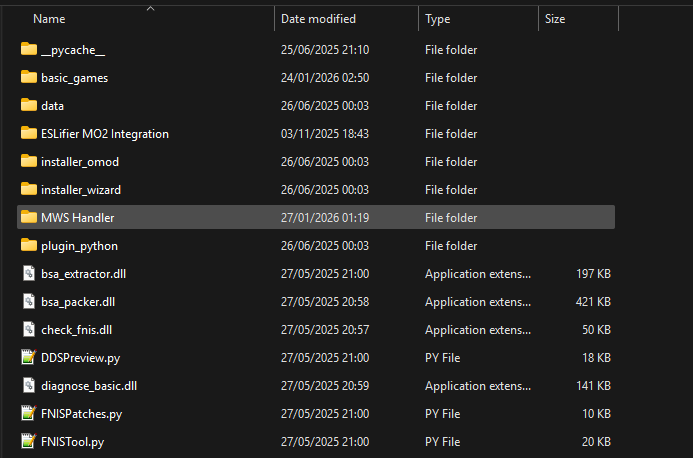
- Copy or drag the files in here, overwrite if prompted.
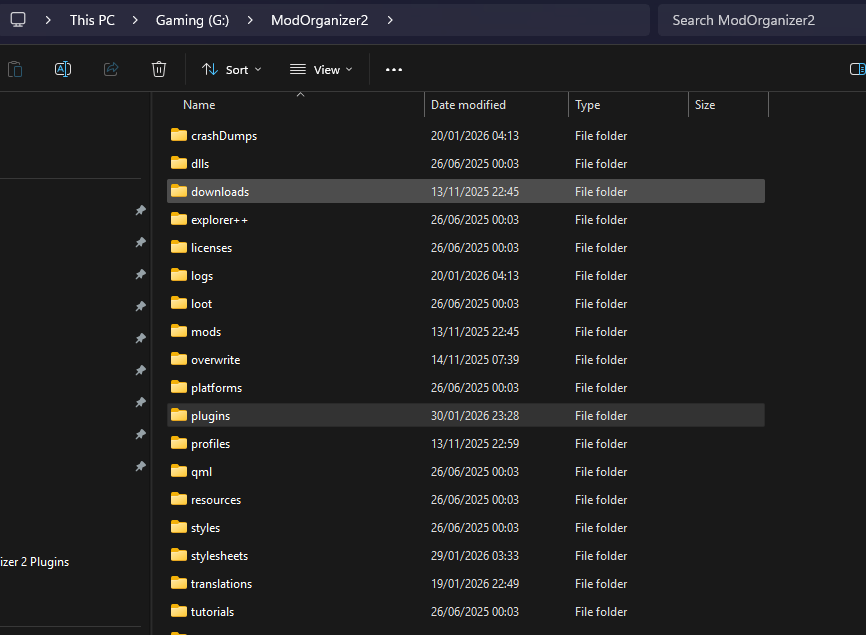
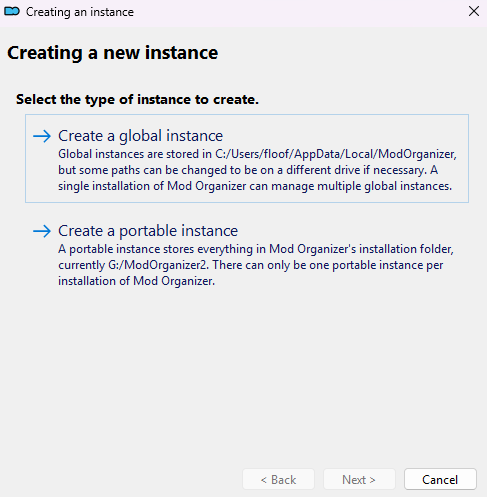
- Start up MO2 and create an Instance
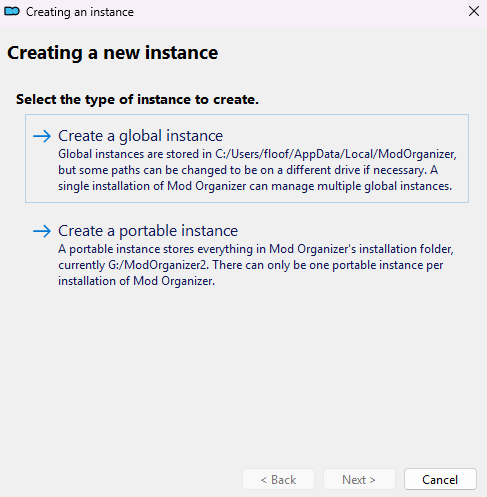
- Usually you will want to select Global Instance
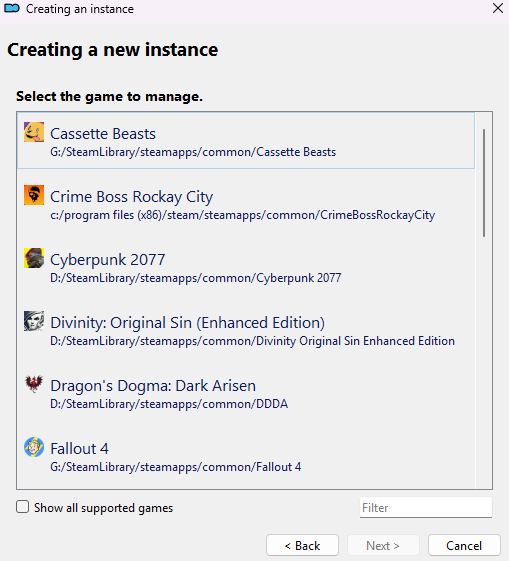
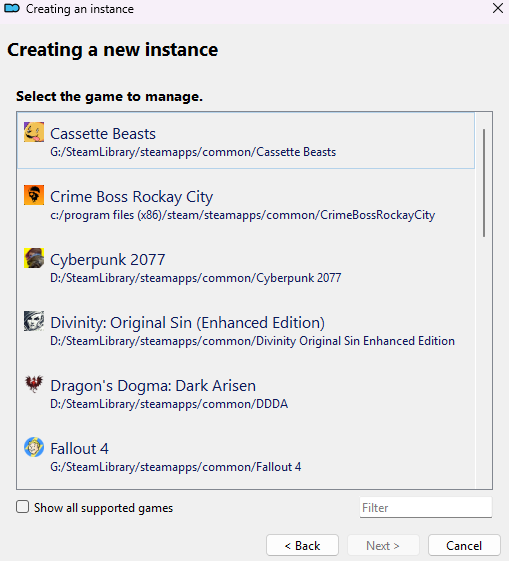
- Pick the game you want to mod and just proceed to the main UI.
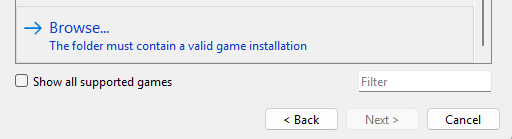
- If the game is not showing automatically you may want to scroll to the bottom and select the game folder manually.
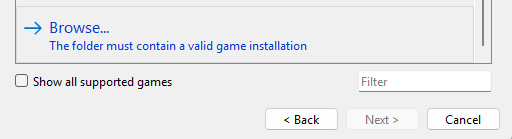
- However only games that are actually supported can be added.
- Additional games can be requested on the MWS discord in the channel #mod manager
- You can now download games via the mod manager button on any supported mod page.
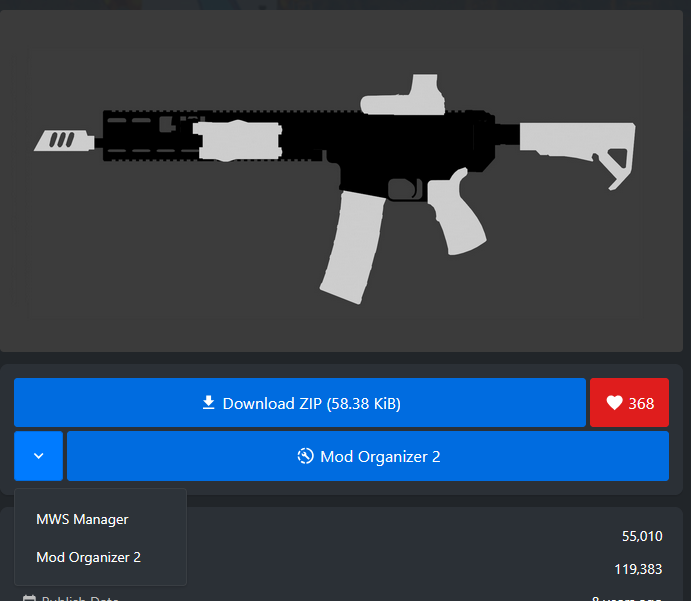
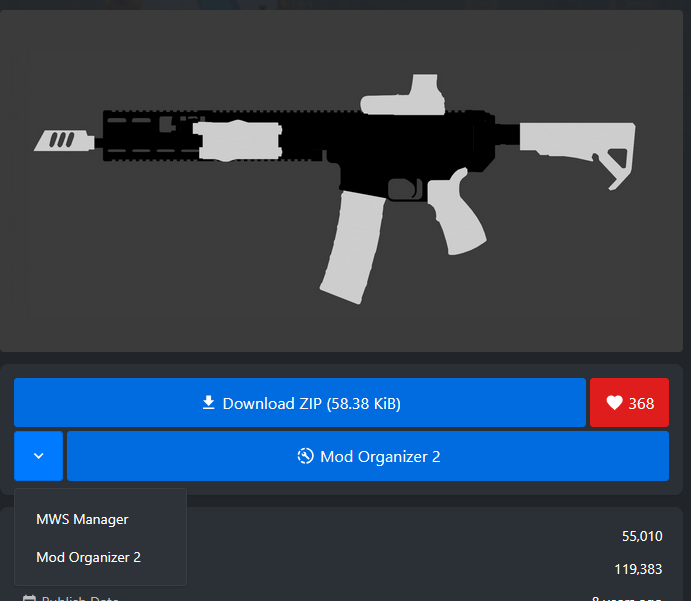
- Make sure to open an instance of MO2 for the game you wish to download mods for or it will not work.
- Should Mod Organizer 2 not show as an option on the Mod then its either inside the drop down menu on the side or the mod does not support automatic installation.
- Additionally to downloading mods via the mod manager buttons you can also drop files directly into MO2 for intallation.
- To do that simply drag and drop files into the empty square in the downloads tab.
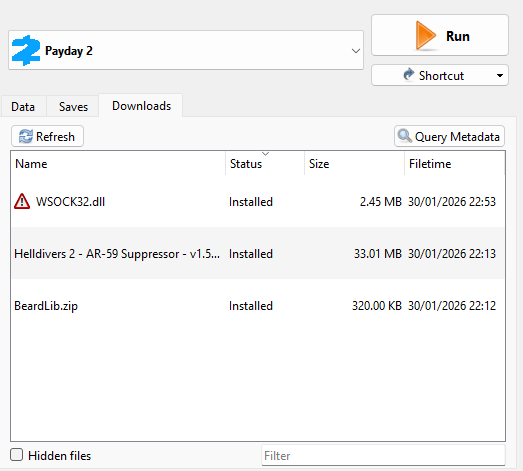
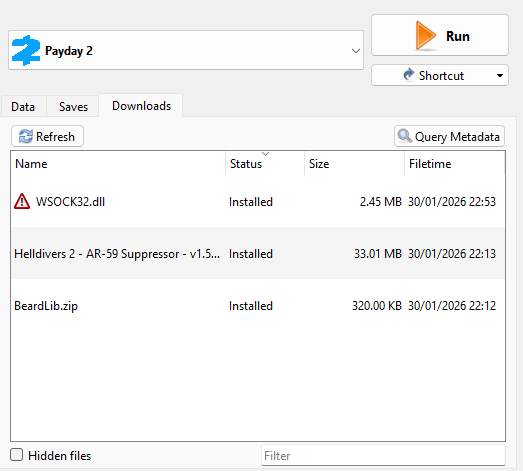
- To install a mod into the virtual file system simply doubleclick a file in the downloads tab.
- Once its been installed itll be available in the list in the main window.
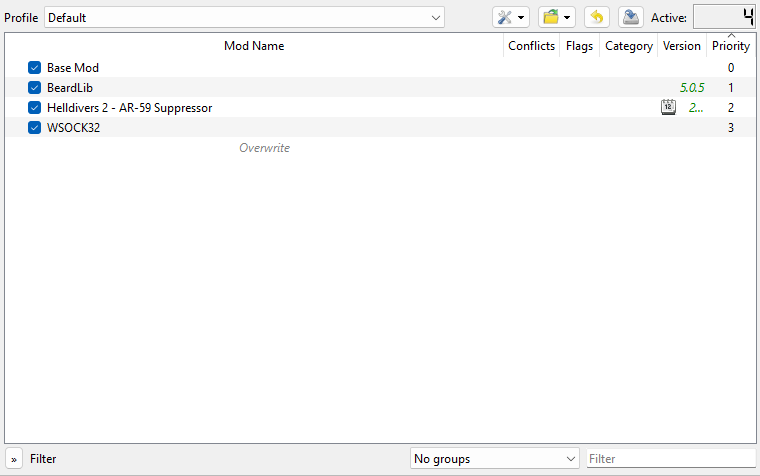
- From now on you can toggle any mod on or off in this panel without any additional fill processing.
- Your original game folder remains unaltered and you can run the unmodded game via steam or the game folder, as usual.
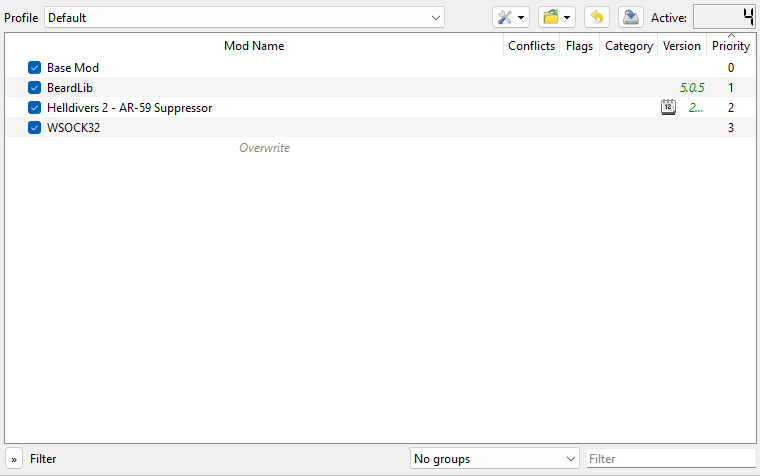
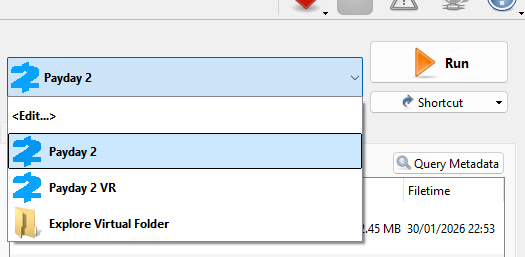
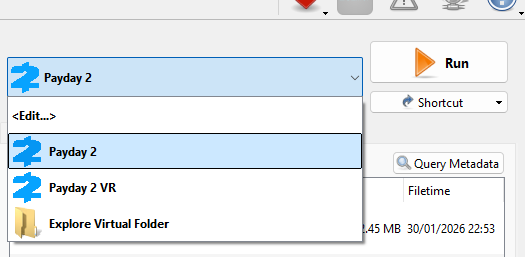
- If you wish to run a game with mods, simply make sure mods are enable and launch an option from the executables menu.
- Some games require some additional setup steps which are detailed on other pages of this wiki. Have fun.
No comments to display
No comments to display